
Org chart sync from Google Workspace and Microsoft 365
Directory sync is an Organization Viewer feature that builds and keeps your org chart from Google Workspace or Microsoft 365, with optional alerts in Slack or Microsoft Teams when people join, leave or move.
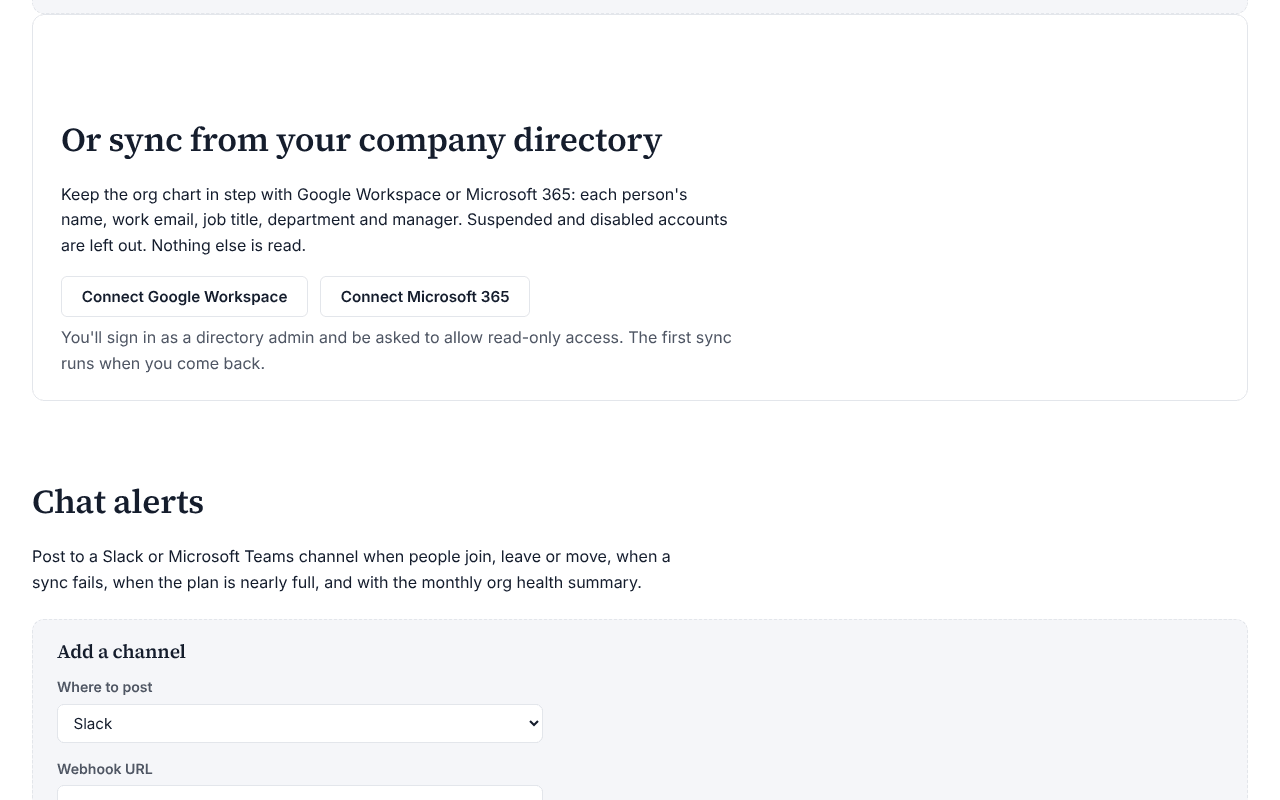
If your company keeps job titles, departments and managers in Google Workspace or Microsoft 365, Organization Viewer can build and keep the org chart from the directory instead of an HR system. Owners and admins connect it on the Integrations page, on every plan.
Alerts in Slack or Microsoft Teams tell a channel when people join, leave or move, with counts only unless you choose to include names.
Who is this for?
- Companies without an HR systemYou’ll use it to build the org chart from the Google or Microsoft directory you already keep.
- IT and people operationsYou’ll use it to keep the chart current without exports, using read-only directory access.
- Teams that live in Slack or TeamsYou’ll use it to hear about joiners, leavers and failed syncs in a channel you already watch.
What it does
- Reads each active person's name, work email, job title, department and manager from the directory.
- Syncs once a day and whenever you choose Sync now. Synced fields become read-only in Organization Viewer; change them in the directory.
- Leaves out suspended, disabled, archived and guest accounts, and removes someone at the next sync once their account is suspended.
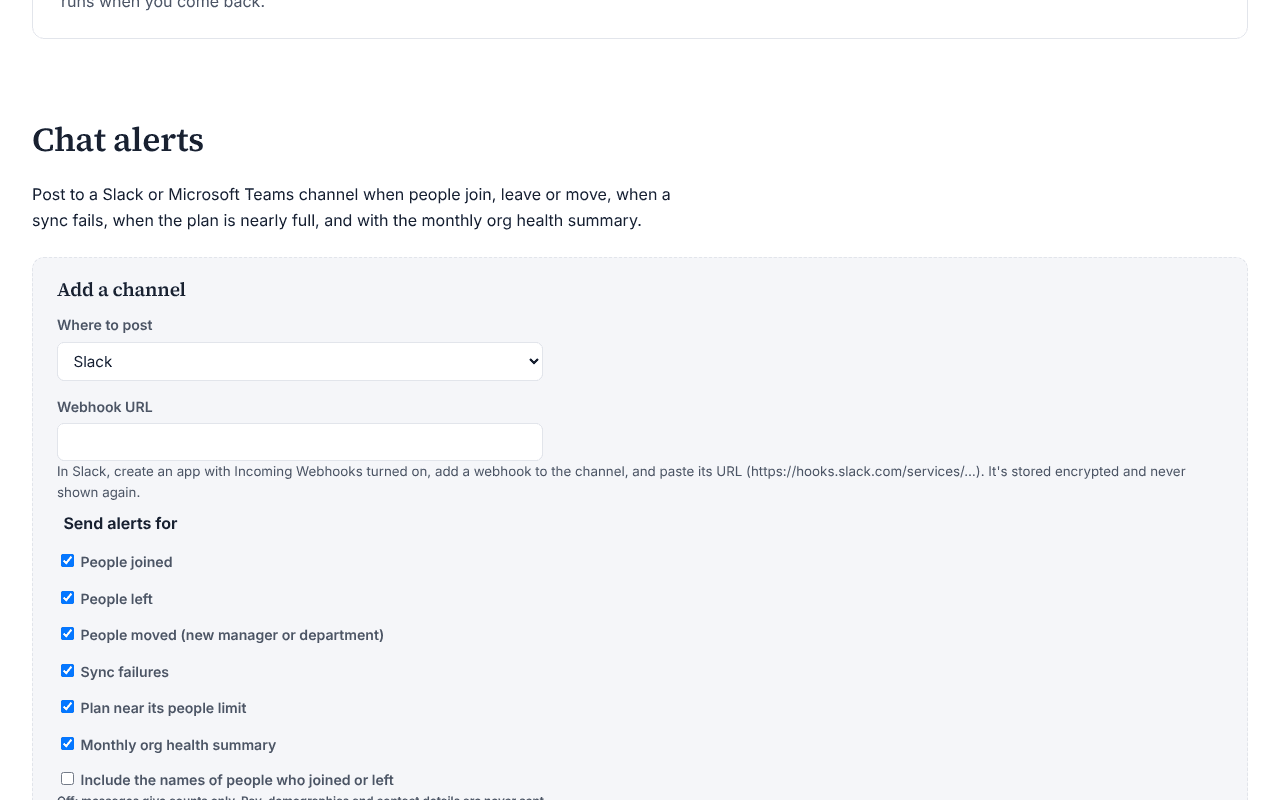
- Posts to one Slack channel and one Teams channel: people joined, people left, people moved, sync failures, plan near its people limit, and the monthly org health summary.
What it costs: Included on every Organization Viewer plan, including Free for up to 50 people. Paid plans start at $300 a month for 51 to 250 people. See pricing.
How it works, step by step
- Open Integrations and choose Connect Google Workspace or Connect Microsoft 365.
- Sign in as a directory admin and allow read-only access to the user directory.
- You're brought back to Integrations and the first sync runs. Check the sync history for anything it skipped.
- For alerts, paste a Slack incoming webhook or a Teams Workflows webhook under Chat alerts, choose the events and send a test message.
Feature details
What is read
- Google Workspace: each user's id, primary email, full name, suspended and archived status, manager relation, and title and department, through read-only access to users.
- Microsoft 365: each user's id, display name, job title, department, mail or sign-in name, whether the account is enabled, whether it's a guest, and their manager, through User.Read.All.
- Each request names exactly the fields it wants, so nothing else is downloaded.
What is never read
- Pay: directories don't hold it, and a sync never sets it.
- Phone numbers, addresses and demographic fields such as Google's gender field are never requested, so they're never mapped to anyone.
Chat alerts: counts by default
- Messages give counts only. Turn on Include names to name the people who joined or left; it's off until you turn it on.
- With names on, a message names up to 20 people and gives the count of the rest.
- Pay, demographics, email addresses and a failed sync's details are never sent. A failure alert links to the Integrations page.
- Only Slack and Teams webhook addresses are accepted. The URL is stored encrypted and isn't shown again.
Questions
What access does the sync need?
Read-only access to the user directory: Google's admin directory user read-only scope, or Microsoft Graph User.Read.All with admin consent. It never writes to the directory.
Does it read pay or demographics?
No. Directories hold no pay, and phone numbers, addresses and demographic fields are never requested.
Do Slack or Teams messages name people?
Only if an admin turns on Include names for that channel, and then only for people who joined or left. Otherwise messages give counts.
Which plans include it?
Every plan, including Free.
Learn more
Help articles
Related consulting
Related features
- Pay transparency tracker
- AI hiring tool inventory
- Manager and 360 surveys
- Headcount budget planner
- Attrition analytics
- Pay equity analysis
- Hiring funnel analytics
- Engagement survey analysis
- AI hiring bias audit calculations
- Booking and review requests
- Structured interview scorecards
- Job analysis wizard
- Onboarding plans
- Adverse-impact checker
- Requisitions
- Offer and pay-range check
- Goals and check-ins
- Review cycles
- 9-box calibration
- Team health dashboard
- Workforce analytics tools
Start with the sample, or with your own org
Sign-in is a one-time email link, with no password and no credit card. Load the fictional sample company to see every feature working before you enter real data.