
Offer and pay-range check
The offer and pay-range check is an Organization Viewer tool that flags an offer below or above the role's pay range and shows the pay transparency posting rules where the job is.
An offer outside the range a role was approved at is easy to miss. On each requisition in Organization Viewer, the offer is checked against the role's pay range as it was approved.
The same page lists the pay transparency posting rules for the job's work location, from the same 18-law list the pay transparency tracker uses. General information, not legal advice.
Who is this for?
- Recruiters and hiring managersYou’ll use it to check whether an offer fits the pay range before it goes out.
- Compensation teamsYou’ll use it to see offers outside the range on the requisition, against the approved figures.
Watch how it works
A 1:12 walkthrough with English captions and a transcript. The full written guide is in the help center.
Transcript (1:12 video, captions in English)
- How to: check an offer against the pay range
- WHAT IT'S FOR: See whether an offer sits inside the role's approved range
- What you need first. An open requisition. A pay range on the role. Access to Budget and pay range
- STEP 1: Open the requisition, go to Budget and pay range. The range was frozen when the line was approved
- STEP 2: Enter the offer, then Check and record the offer. Offer, annual base pay (USD)
- STEP 3: Read the result. Below the range minimum, within the range, or above the maximum
- STEP 4: Change it with Update the offer. Range position and times the midpoint
- IN PLAIN WORDS: 0% is the minimum, 100% the maximum. 1.00 times the midpoint is exactly the middle. Not legal or tax advice
- Summary. Open Budget and pay range. Check and record the offer. Update it if it changes
- Full guide: blisspointanalytics.com/help/offer-pay-range-check
What it does
- Flags an offer below the range minimum or above the maximum, and by how much.
- Shows where an offer in range falls: the percentage of the way through the range, and the ratio to the midpoint.
- Lists the posting laws for the job's work location, or for every place the role hires from the tracker, each with its official source.
- Records in the activity log where the offer fell, not the amount.
What it costs: Included on every Organization Viewer plan, including Free for up to 50 people. Paid plans start at $300 a month for 51 to 250 people. See pricing.
How it works, step by step
- Open a requisition.
- Enter the offer's annual base pay.
- Read the check, and the posting rules for where the job is.
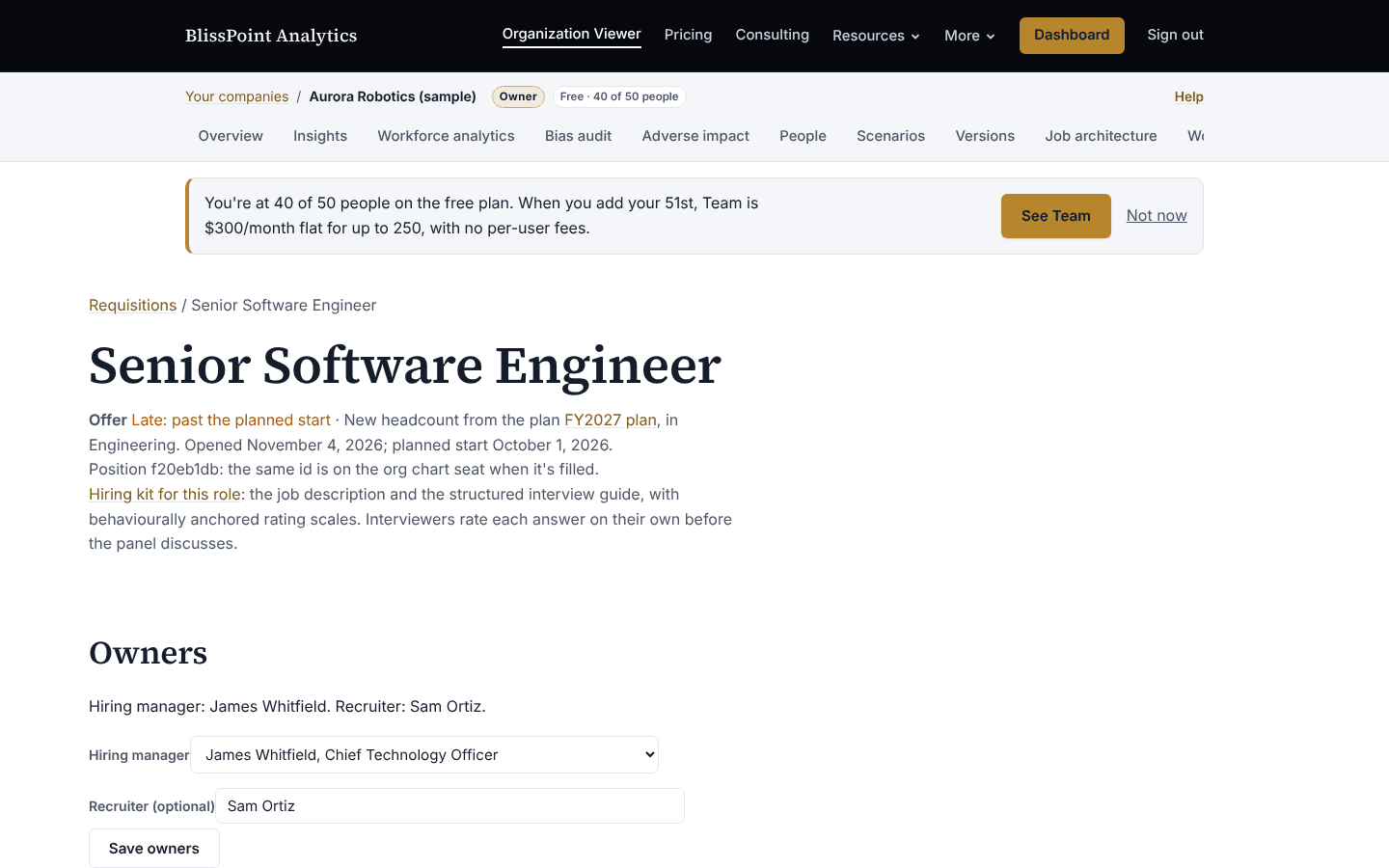
Feature details
Who sees it
- Offer amounts and ranges are shown only to owners, admins, members with pay access, the requisition's hiring manager and anyone named as an extra pay viewer.
Questions
Which range is the offer checked against?
The role's pay range as frozen when the plan line was approved for hiring.
Where do the posting rules come from?
From the pay transparency tracker's law list, each entry with its official source and the date it was last checked.
Is this legal advice?
No. It is general information. Check each law's source and ask counsel.
Learn more
Help articles
Related consulting
Related features
- Pay transparency tracker
- AI hiring tool inventory
- Manager and 360 surveys
- Headcount budget planner
- Directory sync and chat alerts
- Attrition analytics
- Pay equity analysis
- Hiring funnel analytics
- Engagement survey analysis
- AI hiring bias audit calculations
- Booking and review requests
- Structured interview scorecards
- Job analysis wizard
- Onboarding plans
- Adverse-impact checker
- Requisitions
- Goals and check-ins
- Review cycles
- 9-box calibration
- Team health dashboard
- Workforce analytics tools
Start with the sample, or with your own org
Sign-in is a one-time email link, with no password and no credit card. Load the fictional sample company to see every feature working before you enter real data.